Scenario
You are a Power Platform functional consultant and have been assigned to the Fabrikam project for the next stage of the project.
You have been assigned to add a custom page to a model-driven app.
This lab will take approximately 60 minutes to complete.
Exercise 1 – Add an image to the Resource table
In this exercise, you will be adding an image column to the Resource table.
Task 1.1 – Create an image column
Navigate to the Power Apps Maker portal
https://make.powerapps.comMake sure you are in the Dev One environment.
Select Solutions.
Open the Fabrikam Environmental solution.
In the Objects pane on the left, expand Tables.
Select the Resource table.
Under Schema, select Columns.
Select + New column.
Enter
Picturefor Display name.Select File and then Image in the Data type drop-down.
Check the Primary image box.
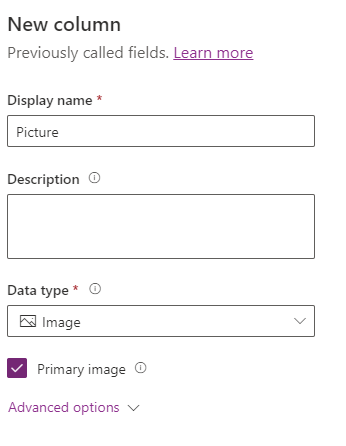
Select Save.
Task 1.2 – Add images to resources
Navigate to the Power Apps Maker portal
https://make.powerapps.comMake sure you are in the Dev One environment.
Select Solutions.
Open the Fabrikam Environmental solution.
In the Objects pane on the left, select Apps.
Select the Environmental Administration app, and select Play.
Select Resources.
Edit each of the resources and upload an image by clicking the circle in the top-left of the form.
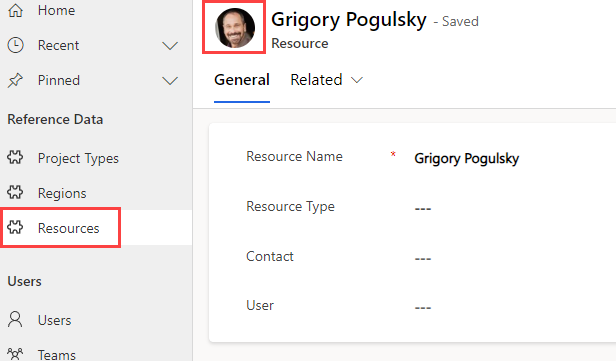
You will find images in Labs/images folder
Exercise 2 – Build custom page
In this exercise, you will build a custom page to manage project resources.
Task 2.1 - Create a custom page
Navigate to the Power Apps Maker portal
https://make.powerapps.comMake sure you are in the Dev One environment.
Select Solutions.
Open the Fabrikam Environmental solution.
In the Objects pane on the left, select Apps.
Select the + New drop-down and select App then Page.
Select With layout and select Split screen.
Select Settings which may be behind the ellipsis (...) menu in the command bar.
Enter
Project Resources pagefor Name.Close Settings.
Rename Screen1 to
Project Resources.
Task 2.2 - Add gallery for resources
In the Tree view, expand ScreenContainer1.
Select LeftContainer1.
In LeftContainer1, select the Insert (+) icon and select Vertical gallery.
Search for
Resourcesand select the Resources table.On the Properties tab for the gallery, select Active Resources for Views.
On the Properties tab for the gallery, under Fields select 5 selected.
Select contoso_resourcetype for Subtitle1.
Rename the gallery to
ResourceList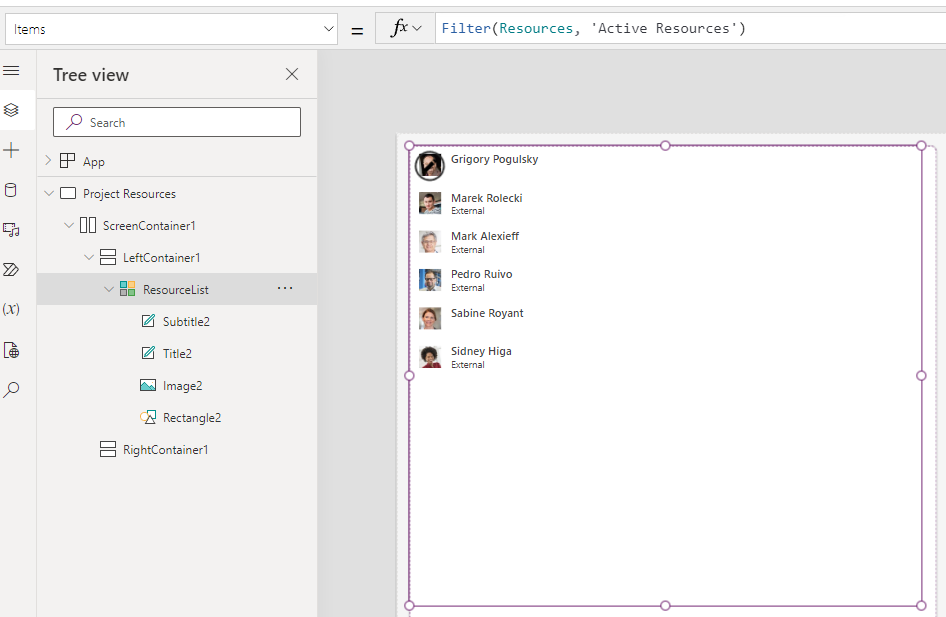
Close the Data panel.
Task 2.3 - Add gallery for project resources
In the Tree view, expand ScreenContainer1.
Select RightContainer1.
In RightContainer1, select the Insert (+) and select Vertical gallery.
Search for
Resourcesand select the Project Resources table.On the Properties tab for the gallery, select Project Resources SubGrid for Views.
On the Properties tab for the gallery, select Title, subtitle, and body for Layout.
On the Properties tab for the gallery, under Fields select 5 selected.
Select statuscode for Body.
Select contoso_projectrole for Subtitle.
Select or enter
ThisItem.Namefor Title.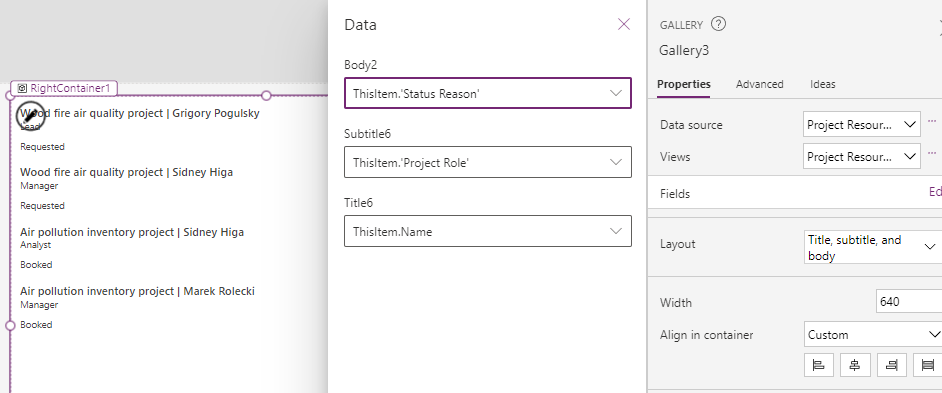
Select the gallery and select Items in the property selector.
Filter('Project Resources_1', Resource.Resource = ResourceList.Selected.Resource)Rename the gallery to
ProjectResourceListPreview the page and verify that two projects are listed for Sidney.
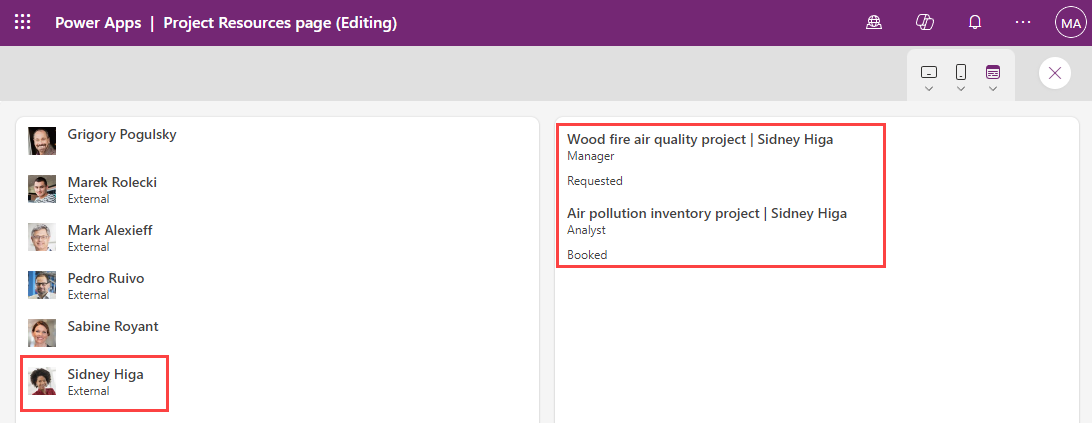
Close the preview.
Select Save.
Select Publish.
Select Publish this version.
Select 🡠 Back.
Select Leave.
Task 2.4 – Add custom page
In this task, you will add the custom page to a model-driven app.
Navigate to the Power Apps Maker portal
https://make.powerapps.comMake sure you are in the Dev One environment.
Select Solutions.
Open the Fabrikam Environmental solution.
In the Objects pane on the left, select Apps.
Select the Environmental Project Delivery app, select the Commands menu (...), and select Edit > Edit in new tab.
In the Pages pane on the left side, select projects.
Select the ellipsis (...) for Projects and select New page.
Select Custom page.
Select Project Resources page.
Select Add.
Select Save and Publish.
Select Play.
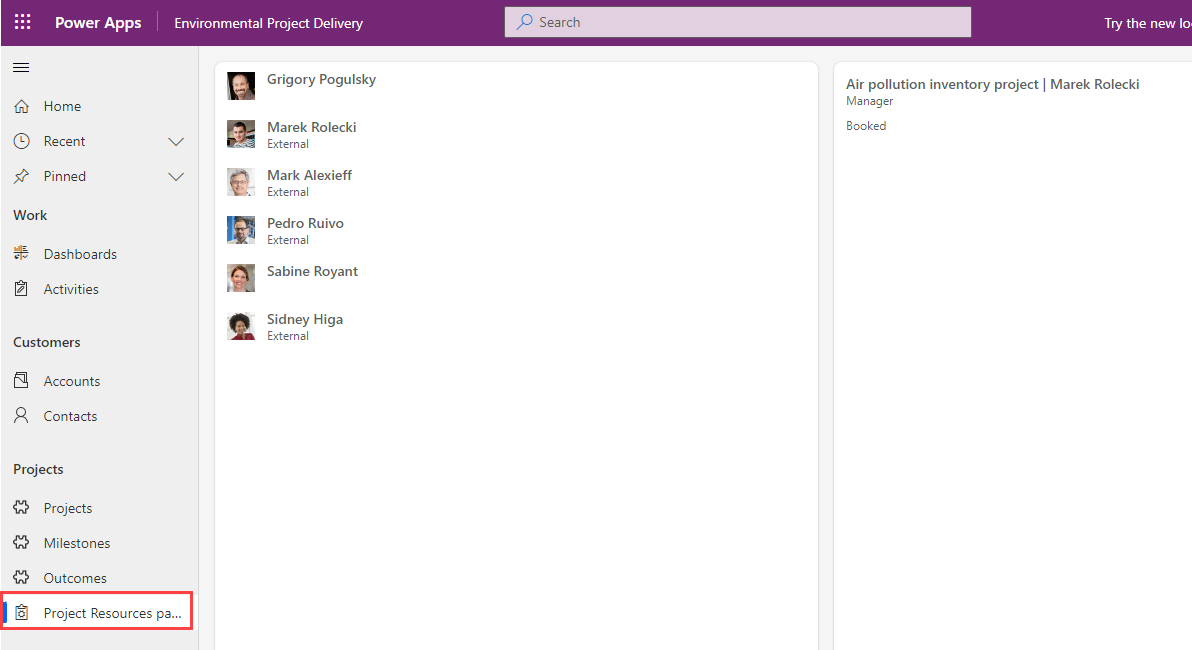
Select Project Resources page under Projects and verify that resources are displayed and then close the app and app designer browser tabs.
Select Done.